Desktop app · macOS, Windows and Linux

Show the bug, in any app.

Sekee Recorder is a free desktop app for capturing what went wrong anywhere on your computer: a marked-up screenshot of any window, or a recording of the whole screen with comments and steps. It is not the Sekee web app; it sits in your menu bar or tray beside whatever you are testing. Without an account, everything stays on your device. Sign in with Sekee and it becomes a bug or a test case there.

  • Free
  • No account needed
  • Nothing uploaded unless you send it

Download Sekee Recorder for

Also for Linux (Arm)

Privacy: what stays on your device

The recorder at a glance

Desktop app

Sekee Recorder

Free

Bug capture and test-case writing for the whole device: any app, any window, from the menu bar or the tray.

macOS, Windows and Linux (X11).

  • A screenshot of any app with Alt+Shift+S
  • A screenshot into a Sekee session, as a comment or a bug
  • Record the screen under your mouse, with comments and steps
  • An edge tab that follows you across monitors
  • Review, then export one HTML report or a ZIP
  • Screenshots saved to Documents/Sekee, or wherever you choose
Testing a website? The browser extension records a tab, with page diagnostics.

Quick screenshot

One frame, from any app.

Press Alt+Shift+S (⌥⇧S on a Mac) in any app, or choose Shot on the edge tab. The screen under your mouse freezes and you drag a box over what you want. Sekee’s own windows are hidden first, so they never end up in the picture.

Select
Drag a box, or press Ctrl+A (⌘A on a Mac) for the whole screen. Move it, or resize it from the corners. Esc cancels.
Annotate
Pen, arrow, box, cover and text, in colours you can save to your own palette.
Keep
Copy puts it on the clipboard and writes no file; Save keeps a PNG. During a recording, Save becomes Add to recording and attaches the image at that moment.
Add to…
Or send it to a Sekee session as a comment or a bug, below.
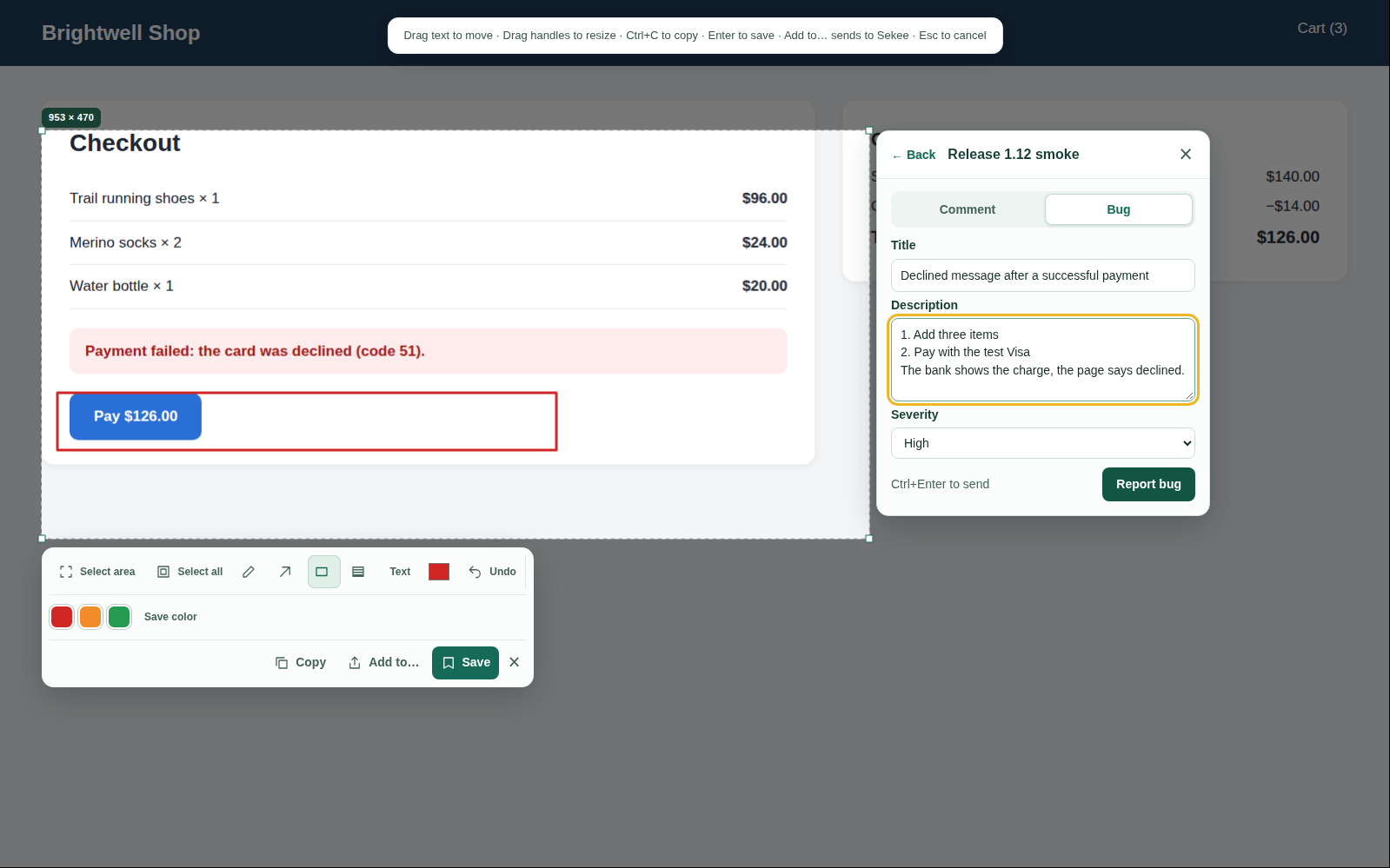
Sekee Recorder over a checkout page that says the card was declined: the selected area with the Pay button boxed in red, and beside it the Add to… panel set to Bug, with a title, steps in the description, High severity and Report bug.
Sekee Recorder’s screenshot tool over a checkout page: the selected area with the Pay button boxed, the toolbar with Copy, Add to… and Save, and Add to… open beside it.

Add to…

From a screenshot to a bug, without leaving the app.

Once you have selected an area, Add to… sits next to Save. It files the screenshot as a bug on its own in a project, or adds it to one of your open Sekee sessions, or a new one, as a comment or a bug. The panel opens inside the screenshot tool, over whatever you are testing: no browser, no new window.

Pick a session
Open sessions first and finished ones after them, with search, and a project switch when you have more than one. New session makes one on the spot. Your last choice is remembered.
Comment or bug
A comment is a note for whoever reads the session. A bug gets a title, a description and a severity from Low to Critical, and opens in the session with the screenshot attached.
Carry on
Open in Sekee shows what you just added; Done puts you back where you were. If sending fails, what you typed stays, and you can try again. During a recording, Add to… is there too.

Add to… needs a signed-in Sekee account, with a role that can add to sessions. Signed out, it asks you to sign in, and everything else stays free and on your computer.

Add to…, step by step: pick a session, then write a comment or a bug.

Record

The whole screen, with comments and steps.

Record a bug report or a test case on the screen your mouse is on, whatever app is open there.

  • Record a bug report or a test case

    Pause, unmute, add comments or steps — each with a screenshot if you like — and stop when you are done.

  • Review, then export

    The review window lets you tidy up the notes, then export one HTML report or a ZIP with the video, a Markdown report and the screenshots.

  • The edge tab

    A small green tab on the right edge of the screen you are on. Hover it for Shot, Record, Folder and Settings; while recording, it holds the controls.

Linux needs an X11 session: Wayland does not let an app read the cursor or own global shortcuts. On macOS and Linux, Sekee’s own small windows can appear in a video while you use them; screenshots always hide them. A recording shows whatever was on screen, so look through it before you send it anywhere.

The edge tab: hover it for Shot, Record, Folder and Settings. It follows your mouse across monitors, and turns off in Settings.

Four shortcuts, in every app

Quick screenshot
AltShiftS
Add a comment or step
AltShiftA
Pause or resume
AltShiftP
Stop & review
AltShiftX

Option instead of Alt on a Mac, so a quick screenshot is ⌥⇧S. Quick screenshot works any time; the other three while recording. Change any of them in Settings, where two Sekee actions cannot share keys. While the recorder runs it owns these keys system-wide, in the browser too.

With or without an account

Local by default. Connected when you want.

Without an account

Everything stays on your computer. Screenshots go to Documents/Sekee, or wherever Settings says; recordings and drafts stay in the app’s data folder until you delete them; you export an HTML report or a ZIP when you choose. Nothing to sign up for, nothing uploaded.

Signed in to Sekee

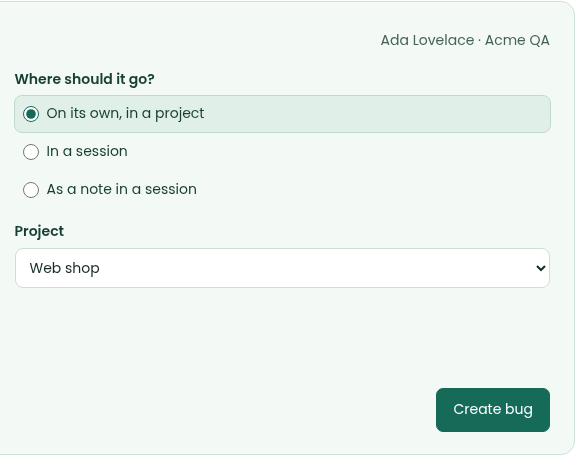
Choose Sign in to Sekee… in Settings or the tray menu, allow the recorder in your browser, and it is connected. Record as always; after review, Create in Sekee turns the recording into a bug, on its own in a project or in a session, or into a test case in the folder you pick, its steps made from your notes. A quick screenshot goes in from its own editor, with Add to….

Signing in is optional, and signing out puts the recorder back exactly as it was. The sign-in is kept encrypted with your system’s key store, and every connected app is listed in your Sekee settings, where you can revoke it.

Create in Sekee on the recorder's review page, Where should it go?: On its own, in a project chosen over In a session and As a note in a session, the Web shop project, and Create bug.

Free for macOS, Windows and Linux.

The download at the top of this page is the latest version; the app tells you when a newer one is out. Questions or problems: email support@sekee.io. Leave your address below to hear when we launch something new.

Launch

Tell me when it launches.

Leave an address and we'll email you whenever we launch something new. That is the only thing we'll use it for — no newsletter attached.