Browser extension · Chrome and Firefox

Show the bug. Keep the context.

A free browser extension for capturing what went wrong on a website: record the tab you are testing with notes, screenshots and page diagnostics, or take one marked-up screenshot. Without an account, everything stays on your device. Sign in with Sekee and it becomes a bug or a test case there.

  • Free
  • No account needed
  • Nothing uploaded unless you send it

Privacy: what stays on your device

The extension at a glance

Chrome and Firefox

Sekee extension

Free

Record the tab you are testing, or a screen, with private notes and screenshots pinned to the moment they explain.

Chrome 127 or later. Firefox as a separate preview.

  • Bug reports and test cases, each with its own mode
  • Quick screenshot with arrows, boxes, text and cover-up
  • A screenshot into a Sekee session, as a comment or a bug
  • Clicks and page changes become editable steps
  • Optional console capture and network metadata
  • One offline HTML report, or a ZIP of separate files
Testing a desktop app rather than a website? Sekee Recorder does this for the whole screen.

Record a bug

From a failed checkout to a useful report.

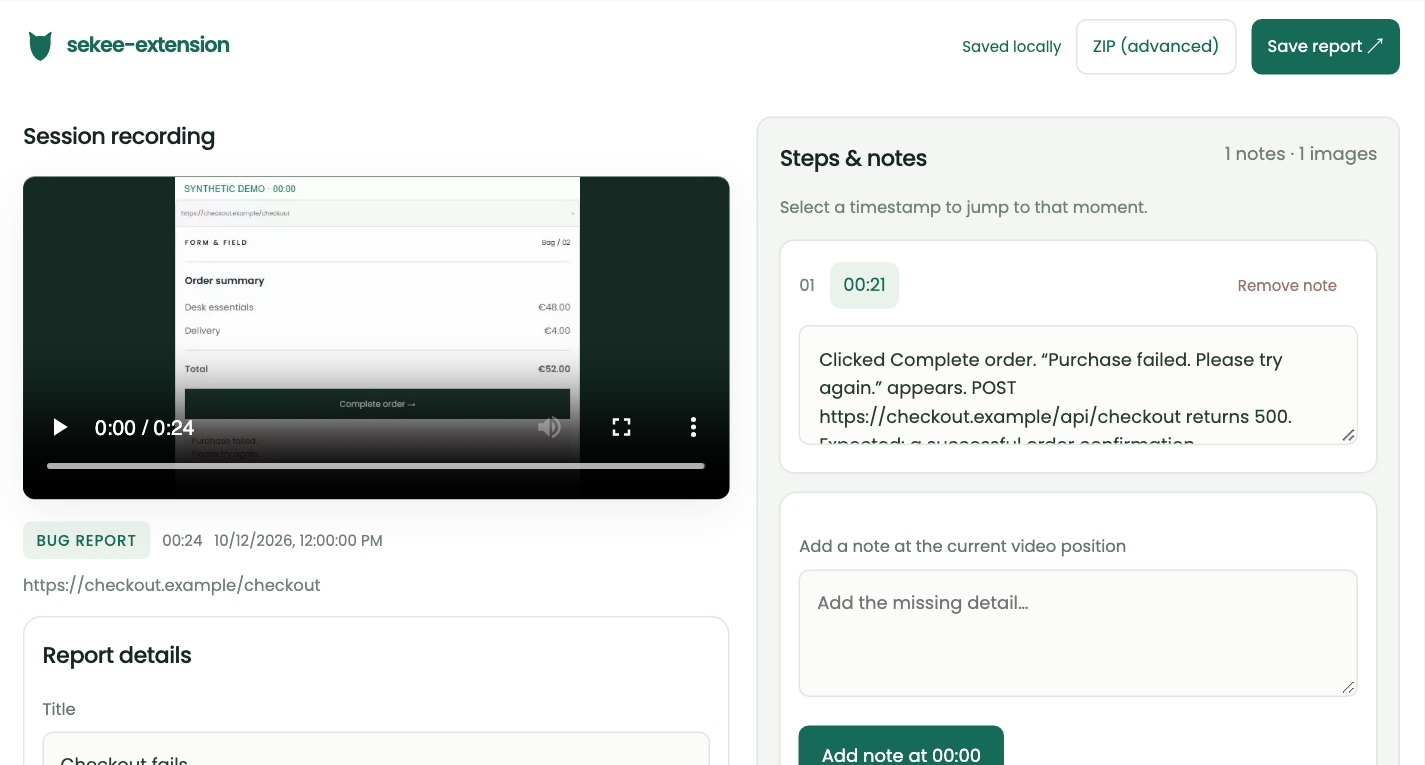
Record, mark the moment, say what should have happened, hand it over. A bug report your developer can act on without asking you three questions first.

Show how the purchase fails.

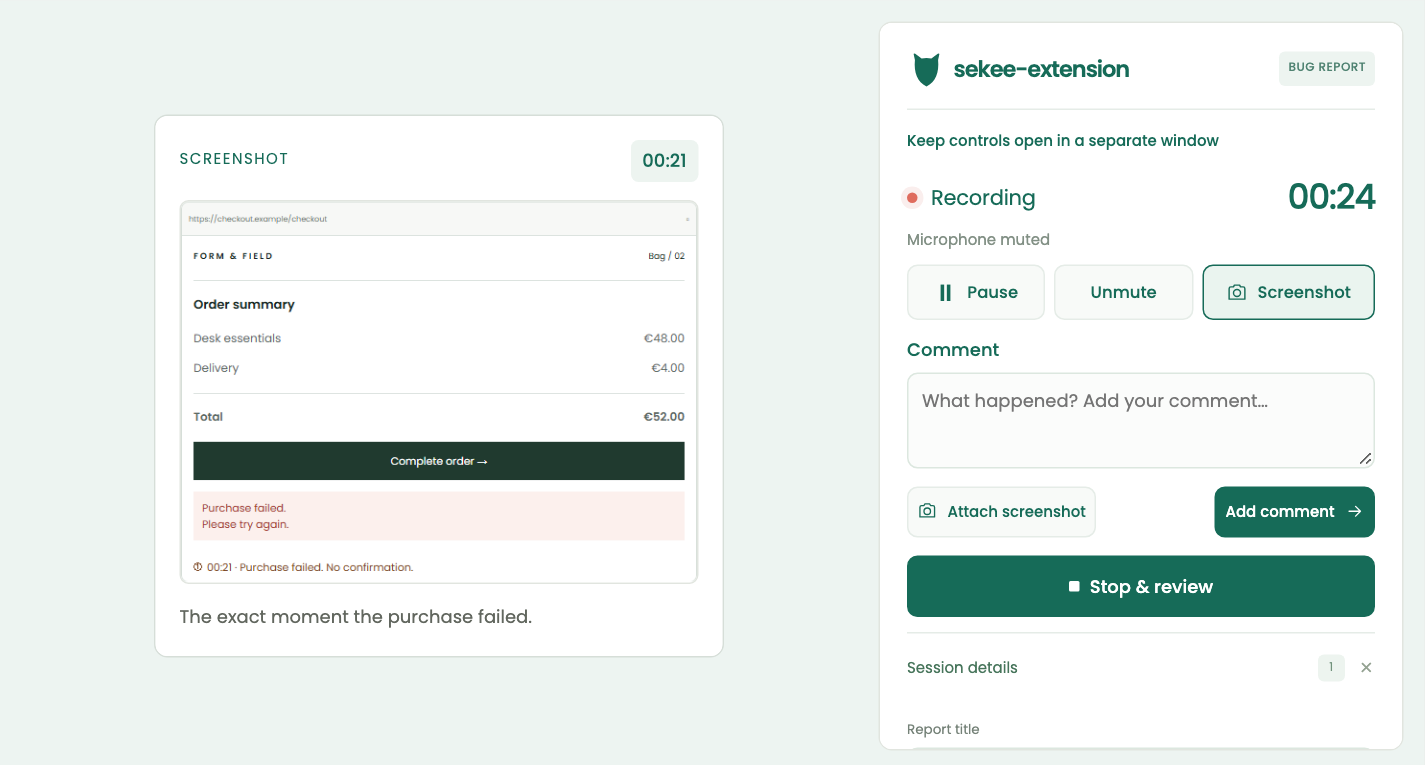
Record the tab, or a screen, and show exactly where it breaks. Pause whenever you need, and keep the controls open in their own window.

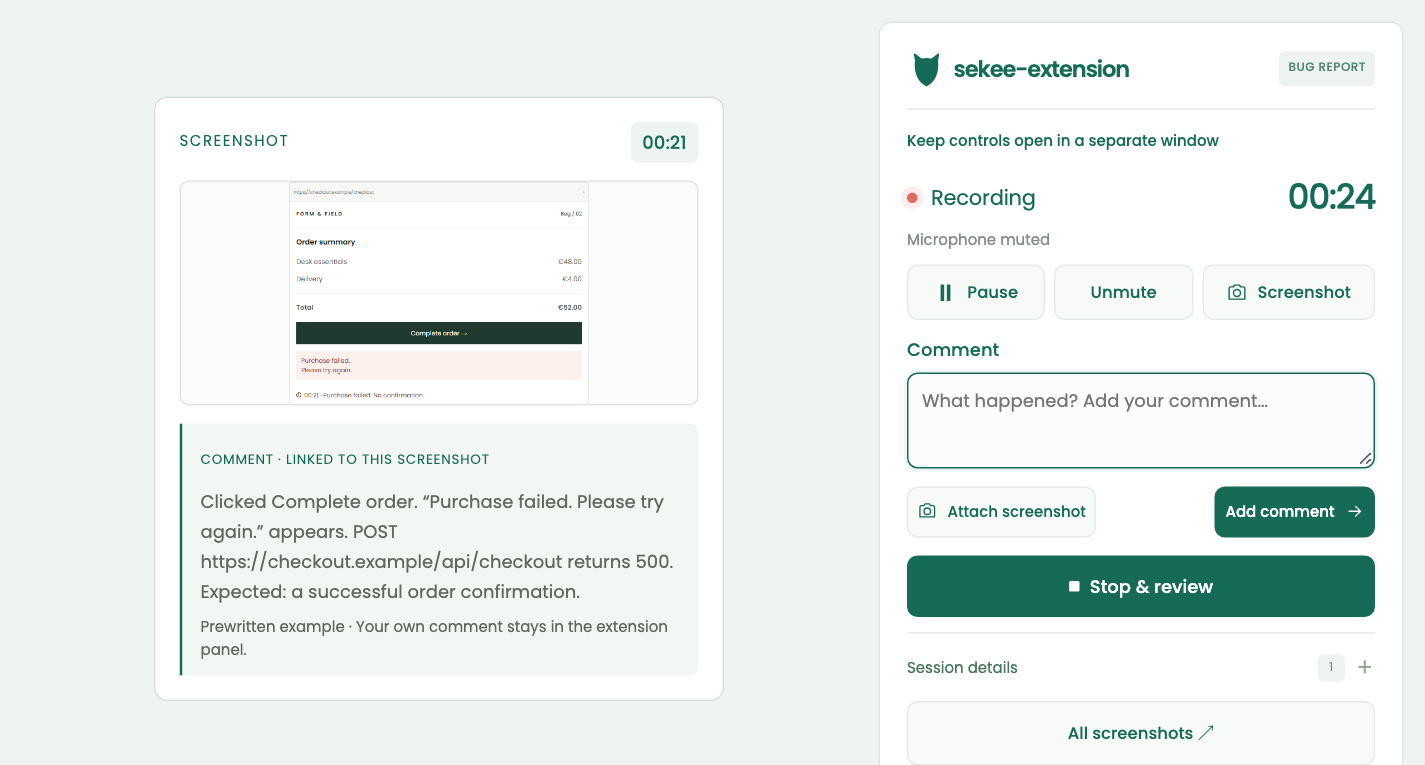
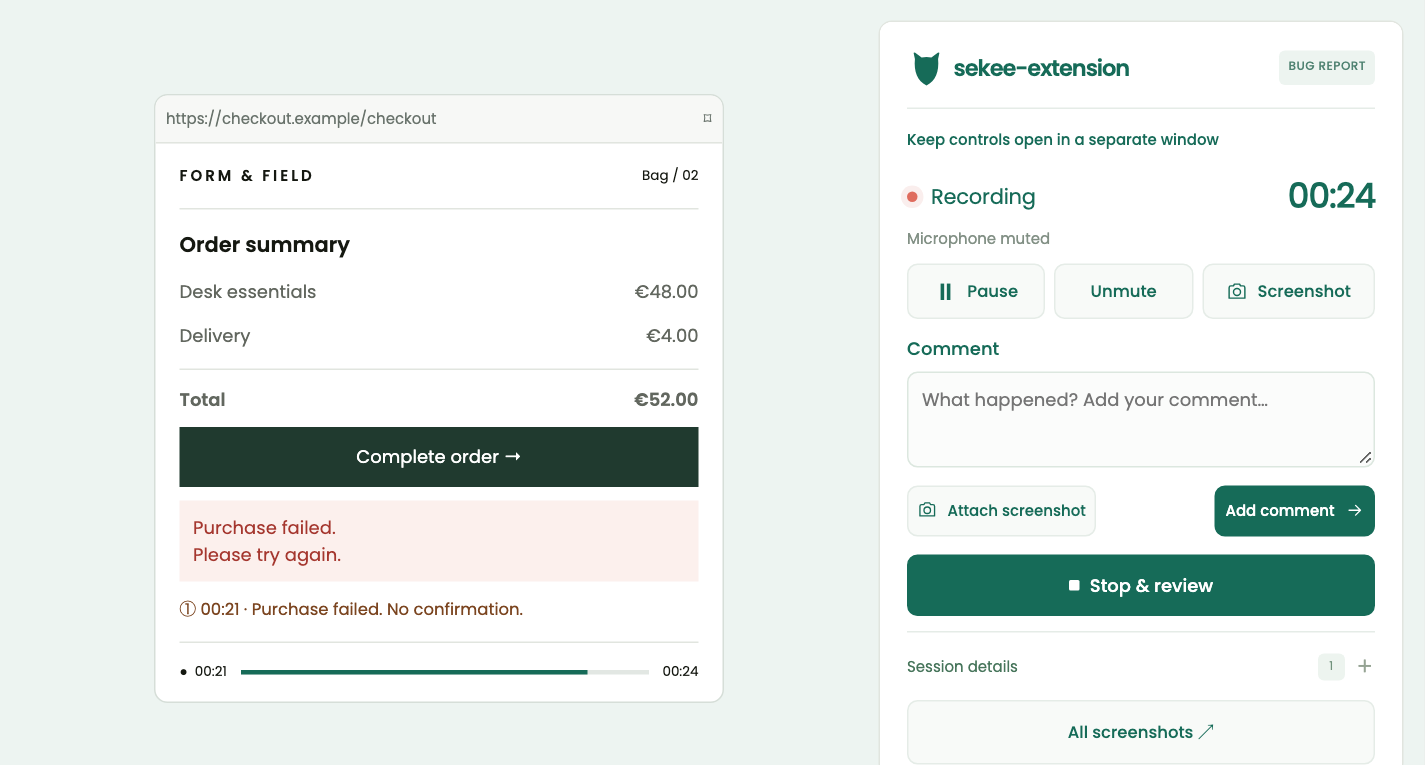
The extension recording a checkout: a 24-second timer, Pause, Unmute and Screenshot buttons, and a comment box beside the failed order.
The extension's own screens, on a synthetic checkout. Nothing here was recorded from a real site.

Quick screenshot

One frame. No recording needed.

Select part of the page, mark it up and keep a PNG before you ever press record. Press Alt+Shift+S (⌥⇧S on a Mac) on any web page, or choose Quick screenshot in the toolbar popup. Try it here: it is the extension’s own tool, running over a synthetic page.

Select
Drag over a frozen capture of the visible page, or select all of it. Resize with the corner handles.
Annotate
Pen, arrow, rectangle, cover and text, in colours you can save to your own palette.
Keep
Save it to the extension’s gallery, copy it straight into a ticket, or download the PNG. During a recording, the same tool attaches the image at its timestamp.
Add to…
Or send it to a Sekee session as a comment or a bug, below. This demo stops at Save: Add to… needs a Sekee account to send to.
Quick screenshotSynthetic page · real tool

Opens the extension’s selection tool over a synthetic checkout. Nothing on your screen is captured.

Add to…

From a screenshot to a bug, without leaving the page.

Once you have selected an area, Add to… sits next to Save. It files the screenshot as a bug on its own in a project, or adds it to one of your open Sekee sessions, or a new one, as a comment or a bug. The panel opens inside the screenshot tool, over the page you are testing: no new tab.

Pick a session
Open sessions first and finished ones after them, with search, and a project switch when you have more than one. New session makes one on the spot. Your last choice is remembered.
Comment or bug
A comment is a note for whoever reads the session. A bug gets a title, a description and a severity from Low to Critical, and opens in the session with the screenshot attached.
Carry on
Open in Sekee shows what you just added; Done puts you back on the page. If sending fails, what you typed stays, and you can try again.

Add to… needs a signed-in Sekee account, with a role that can add to sessions. Signed out, it asks you to sign in, and everything else stays free and on your device.

Add to…, step by step: pick a session, then write a comment or a bug.

Four shortcuts

Quick screenshot
AltShiftS
Add a comment or step
AltShiftA
Pause or resume
AltShiftP
Stop & review
AltShiftX

Option instead of Alt on a Mac, so a quick screenshot is ⌥⇧S. Quick screenshot works on any ordinary web page, any time; the other three while recording. Change them at chrome://extensions/shortcuts.

With or without an account

Local by default. Connected when you want.

Without an account

Everything stays on your device. Recordings, screenshots and notes are kept in the extension’s local storage, and you export an HTML report or a ZIP when you choose. Nothing to sign up for, nothing uploaded.

Signed in to Sekee

Sign in from the extension’s toolbar popup with your Sekee account, and it is connected. Record as always; after Stop & review, Create in Sekee turns the recording into a bug, on its own in a project or in a session, or into a test case in the folder you pick, filled in from your notes and screenshots. A quick screenshot goes in from its own editor, with Add to….

Signing in is optional, and signing out puts the extension back exactly as it was. Every connected app is listed in your Sekee settings, where you can revoke it.

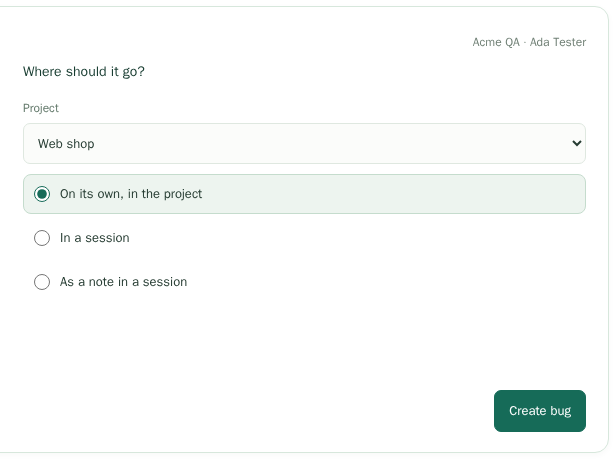
Create in Sekee on the extension's review page, Where should it go?: the Web shop project, with On its own, in the project chosen over In a session and As a note in a session, and Create bug.

You choose what the extension collects.

  • Steps without keystrokes

    Automatic steps record which control was clicked and when the page changed — never what was typed. Switch them off before you record.

  • Diagnostics, if you want them

    Console capture is optional and off by default. Network capture is metadata only: URLs, methods, statuses and timing, never bodies, headers or cookies.

  • Review before sharing

    A recording shows whatever was on screen. Look through the video, images and notes before you send a report anywhere.

Free for Chrome, Edge, Brave, Arc and Firefox.

The button at the top of this page opens your browser’s store as soon as the extension is listed there. Questions or problems: email support@sekee.io. Leave your address below to hear when it, or anything else we make, launches.

Launch

Tell me when it launches.

Leave an address and we'll email you whenever we launch something new. That is the only thing we'll use it for — no newsletter attached.