Bring your own AI to your test management
Why Sekee has no built-in AI, how to connect Claude, Copilot, Cursor, Gemini CLI or another MCP client, and how rules and labels keep it accountable.
The Sekee team 8 min read
Most test management tools now come with an AI feature of their own: a button that drafts test cases, a panel that summarises a run. Sekee does not run an AI model at all. Instead it gives the assistant you already use a way in, through an MCP server, and puts guardrails around what that assistant can do.
This post explains why, how to connect your assistant, what it can and cannot do once connected, how AI rules steer it, and how Sekee shows which changes an assistant made.
Why Sekee has no AI of its own
You already have an assistant. Many teams already pay for Claude, Copilot, Cursor or something similar, chosen by the company and covered by an agreement the company signed. A test management tool with its own model adds another AI provider that your test cases, bug reports and screenshots pass through. With Sekee, the only AI provider that sees your data is the one you already chose, under your own agreement with them.
Your assistant knows things Sekee cannot. The assistant in your editor or terminal can see your code, your tickets and the conversation you are having with it. A model built into a test tool sees only the test tool. Asking "which of these failing tests are caused by yesterday's change?" works better from where the change is.
Models change quickly. When a better model arrives, you can switch on the day it ships. You are not waiting for a vendor to integrate it, or paying extra for the tier that includes it.
The hard part is accountability, not generation. A test case written by a model is only useful if someone reviews it, and an audit trail is only trustworthy if it says who, or what, made a change. So Sekee puts its effort into being a good system of record for an assistant: the same permissions as the person, standing rules, a review queue, and labels that cannot be faked or removed.
What MCP is
The Model Context Protocol (MCP) is an open standard for connecting AI assistants to the tools and data they work with. A service publishes a set of tools, such as "list test cases" or "report a bug", and any assistant that speaks MCP can call them on your behalf. Sekee's AI connector is an MCP server, so the same connection works whichever assistant you use.
Connecting your assistant
In Sekee, go to Settings → AI Connector → New connection and fill in two fields:
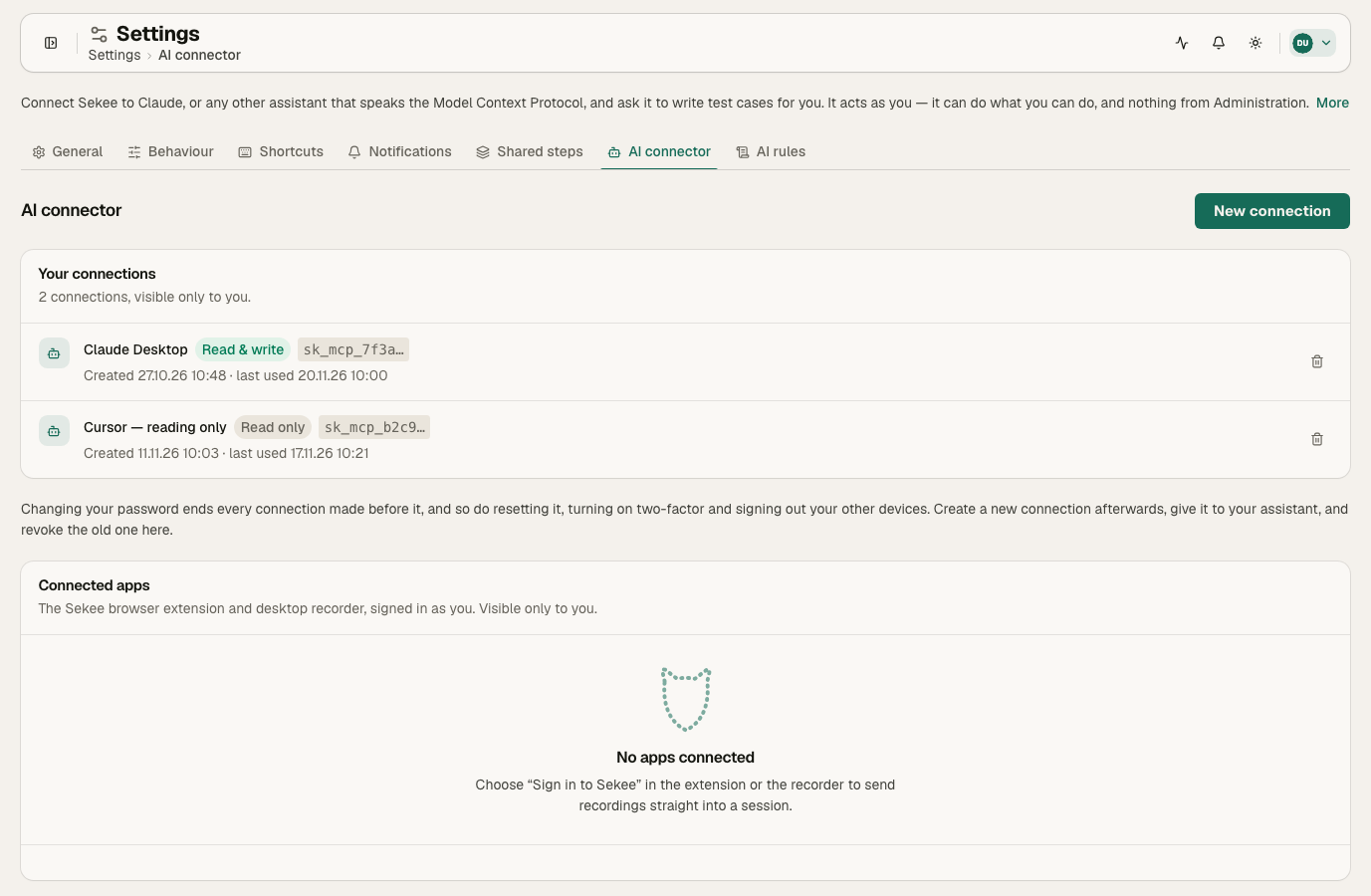
Two connections: one that can write, one that can only read.
- Name: name it after the machine or the assistant you will use it from, so you know which one to revoke later.
- Access: Standard, or Read only. A read-only connection can look at anything you can see and change nothing.
Press Create and the dialog moves on to setup steps for your assistant, with the address and token already filled in. The token is shown once, so copy it then.
The setup dialog covers these clients:
| Client | How it is set up |
|---|---|
| Claude Desktop | Values typed into its connector dialog |
| Claude Code | One command in the terminal |
| Copilot CLI | A JSON block in its MCP configuration |
| Copilot in other IDEs | A JSON block for the Copilot extension outside VS Code |
| VS Code | A JSON block in its MCP settings |
| Cursor | A JSON block in its MCP settings, for one project or all of them |
| Gemini CLI | A JSON block in its settings |
| Codex CLI | A TOML block, with the token read from an environment variable |
| OpenCode | A JSON block in its config |
| Windsurf | A JSON block in its MCP settings |
| Zed | A JSON block in its settings file |
| Something else | Any MCP client that can call an HTTP server and set one header |
A few practical points:
- Each connection is yours. Nobody else in the organization, owners and admins included, can see or revoke it. You can hold up to ten.
- Some things end a connection on purpose: changing or resetting your password, turning on two-factor authentication, and Sign out everywhere else. They are what you do when you think someone else has your password, and a connection is a key to your account.
- New tools need a refresh. When Sekee adds tools, reconnect, or ask your client to refresh its tool list, to see them.
What an assistant can do
A connected assistant can do nearly everything a person can in Sekee: read and write test cases and their steps, shared steps, bug hunts and their results, sessions with their notes and bugs, comments and mentions, requirements, milestones, automation runs, errors, boards and notifications. It can look at screenshots, and add one wherever you could.
In practice that means you can ask things like:
- "Look at last night's failed run, including the failure screenshots, and write the run's AI summary."
- "Write test cases for requirement PROJ-142 in the Checkout folder and link them to the requirement."
- "Create a 60-minute session to explore CSV import with this charter, and add Ana as a participant."
- "Go through the bug hunt 'Release 2.4' and list the failed cases and the bugs still open against them."
What an assistant cannot do
The connector has no permissions of its own. Each call is made as you, through the same API the browser uses, so every role rule and every organization boundary applies exactly as it does to you. An assistant can never do anything you could not do yourself, and on top of that:
- There are no delete tools. The nearest things are clearing a test's unstable flag, which removes no data, and replacing a test case's steps, which drops the ones left out and, like any AI edit, sends the case back for review.
- It cannot administer the organization: members, invites, roles, policies, tokens, integrations and billing are out of reach, and so is your own account (password, two-factor, sessions).
- It cannot read the activity log.
- Some decisions stay with a person: approving test cases an assistant wrote, and closing or reopening milestones.
AI rules: standing instructions for every assistant
AI rules are guidance a connected assistant reads before it writes anything. They are how you make every assistant in the organization write test cases the way your team writes them, without repeating it in every prompt.
You find them under Settings → AI Rules. Each rule has a name, a body, an on/off switch and, optionally, a project: a rule without a project applies across the organization. Every new organization starts with one, Test Case Guidelines:
- Include both positive and negative test scenarios
- Consider edge cases and boundary conditions
- When creating a test from a requirement, link the requirement to it
The last line matters more than it looks. Coverage in Sekee is worked out from links, so a test written for a requirement and never linked to it leaves that requirement showing as uncovered.
Good rules are specific about the result, not the attitude. "Write thorough tests" does nothing; "every case has at least one negative scenario" does. Rules that name your conventions work well:
- Name cases as "<action> <expected outcome>", e.g. "Reject an expired card at payment"
- Put new cases in the folder matching the feature area, never at the root
- Tag anything touching money with "payments"
- One assertion per step; if a step needs "and", it is two steps
Because a rule changes how every connected assistant behaves, it is governed like a setting rather than like content:
- Only owners and admins can create, edit, switch or delete a rule. Everyone can read them.
- Every edit, and every switch on or off, asks for a reason.
- History on each rule shows who changed it, when, why, and what changed, line by line.
- A rule pinned to a project that is deleted becomes Unapplied rather than quietly starting to apply everywhere. No assistant is told it until an owner or admin decides where it belongs.
Rules are instructions to a model, so treat them as steering rather than enforcement. The enforcement is the permissions above and the review below.
How Sekee labels AI work
Sekee records which changes came through the AI connector from the connection's signed token, not from anything the assistant sends. A browser cannot claim the label and an assistant cannot shake it off.
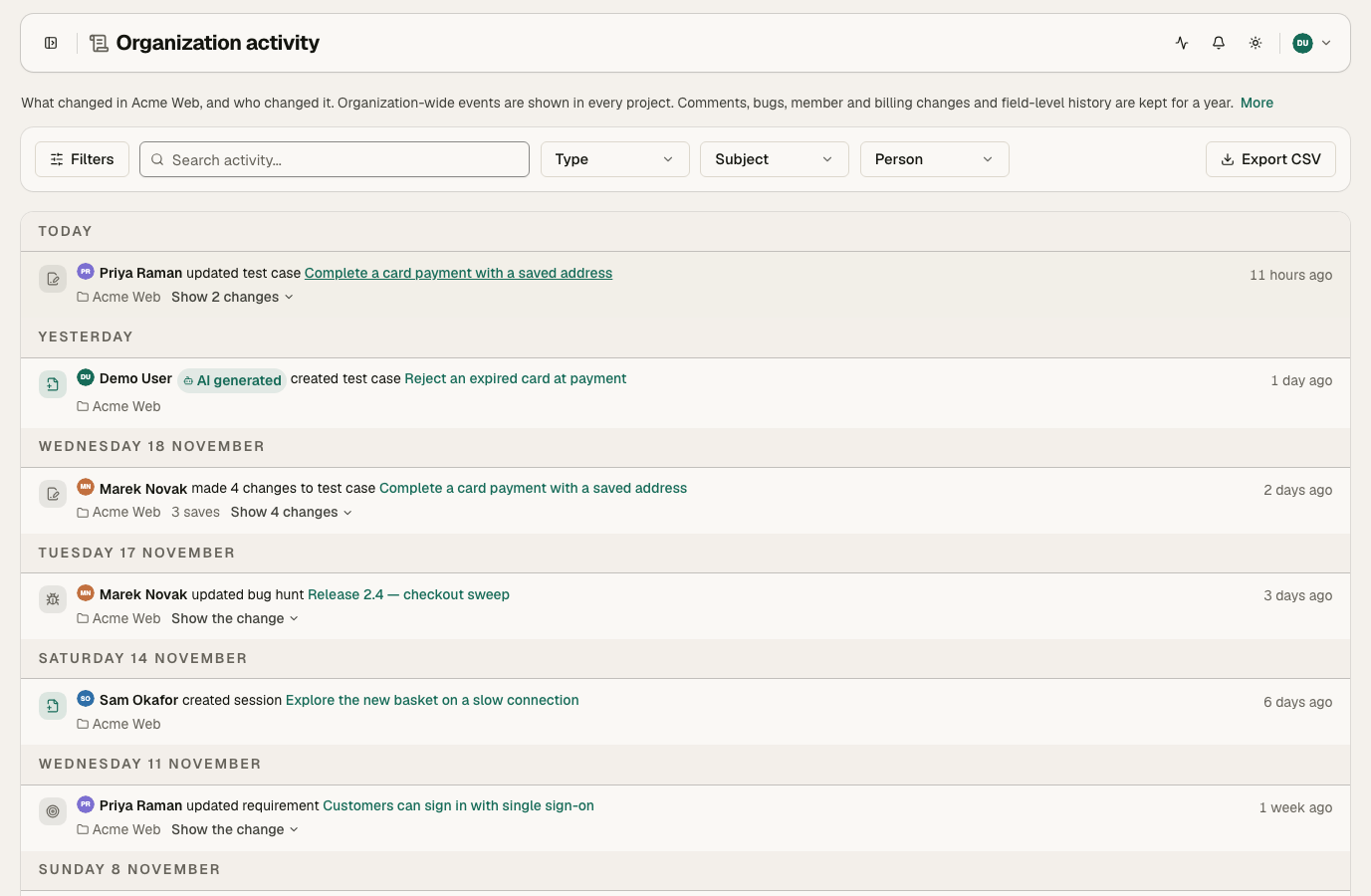
Activity in Sekee's demo, with an assistant's change badged AI generated.
| What the assistant did | What Sekee shows |
|---|---|
| Created a test case | Marked AI generated and put in the review queue |
| Changed a test case a person wrote | Marked AI modified and put in the review queue |
| Changed an approved test case | The approval is withdrawn and it is queued again |
| Wrote a requirement's description | The description is marked Written by AI |
| Wrote or edited a comment | An AI generated badge beside the author, and "(AI generated)" in emails that quote it |
| Wrote a run's AI summary | It appears under AI summary on the run; only a connector can write one |
The activity log (Sekee calls it Activity) marks assistant actions too. A row is attributed to the person whose connection made the change, because the assistant acts as them, and carries an AI generated badge with the connection's name in its tooltip. That label is on every plan that keeps an activity log, deliberately: a log that named a person for forty edits their assistant made would be telling you something untrue, and that is not a thing to charge extra to correct.
A sensible way to start
- Read your AI rules under Settings → AI Rules, and add the conventions your team already follows.
- Create a Read only connection and ask your assistant questions about your test library and recent runs. Nothing can change while you get a feel for it.
- Switch to a Standard connection when you want it to write, and keep an eye on the review queue for the first few batches.
- Check Activity after a busy day, on plans that keep it, to see what your assistant did alongside everyone else.
The AI connector and AI rules pages in the manual list every tool and every setting.
- AI
- MCP
- test management
- AI rules
- audit log